2011
Mar
04

Ignoring project files in git

Over and over again, I have the need to synchronize files between my home computer, my office laptop, and possibly other computers as well. I use git because a lot of these files are things that I might conceivably want to keep a history of, and also because git makes it easy to set up a work environment on another computer.

Project metadata files get in the way of this, though. These are the files that fancier editors use to keep track of things like which files you had open, what syntax highlighting schemes you were using, and so on. The file typically gets changed every time you open the editor. Now, most of that information is pretty trivial, and I typically don't want to synchronize it between computers or keep track of its history. On the other hand, when I'm setting up on a new computer, it's pretty handy to have a project file available to start with, so I'm reluctant to exclude the files from the archive entirely.

Today, I found a solution. After you clone your git repository, in the new work environment, run

git update-index --assume-unchanged <projectfile>

This sets a flag which tells git that it should ignore anything that happens to <projectfile>, and just assume it never needs to be committed. That way, git will just ignore the project file when determining whether you have uncommitted changes, and it'll report that your working copy is up to date as long as all your other files (the ones you actually care about) are up to date.

2010
Aug
23

Website maintenance with git, the pro way

Since the beginning of version control, people have been using VCSs to manage websites. It works pretty well, because the process of web development is similar to the process of programming. Heck, with the advent of dynamic websites these days, often half of web development is programming. But web developers have one peculiar requirement that most other programmers do not: they have to maintain one particular copy of the site which gets continuously updated, but not always with the latest changes.

Typically, when you set up a version control system to handle your website, it works like this: you have a working copy on your computer, a repository on your server, and another "live" working copy on the web server which is the actual website content. Whenever you want to update the website, you push (or commit) changes from your computer to the repository, and have a hook script set up that makes the VCS update the live working copy with the latest changes. That's the approach I found described in a couple of websites: http://danielmiessler.com/blog/using-git-to-maintain-your-website and http://toroid.org/ams/git-website-howto.

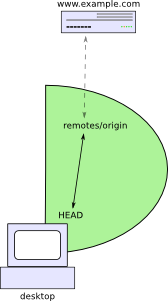
Illustration of basic website management

But once your site turns into a moderately complicated system, this doesn't work so well. Professional websites that need to be reliably available usually have a staging server where the webmaster can test out a new version before changing the live site. And there may be a team of developers who all contribute to creating the website — or even if there's only one webmaster, he or she might be using multiple computers.

For instance, I usually work on this website on my desktop at home, but I also have a couple of laptops that I can use to edit the site when I'm traveling. When I want to put up a new version, I first collect all the changes on my desktop and test them there, then copy them to a staging server (actually a virtual machine that runs on my home computer), which I've set up as a copy of my real web server so that I can test changes to the site before they go live. If they work there, I copy them to the web server itself. As you might guess, it's not exactly straightforward to automate that process with git.

It is possible, though. The key to making this work is that git can push changes anywhere, not just to a central repository. So I could configure git on my desktop to update the staging server, and configure it on the staging server to update the live server.

Illustration of multi-tiered website management

But wait, it gets better! Each clone of a git repository can be set up to automatically track the contents of other clones by adding them as remotes. So I can add the staging server and the live web server as remotes in my desktop repository, and I get to control the entire process from my desktop! Since the desktop repository keeps track of what the most current revision is on both the staging and live servers, I can tell it to copy "staging" to "live" without ever having to log in to the staging server.

Preparation

Without further ado, here's how to set it up. Say you have a staging server at dev.example.com and a live web server at www.example.com. On both servers, you want the directory /srv/www to contain your website. (The git metadata directory would then be /srv/www/.git) Let's also say that you have a server git.example.com which contains your central git repositories, and the one for your website is in /srv/git/website.git. You might set this up with gitosis, for example.

You should be able to connect to each of these servers over SSH, preferably using public-key authentication (so that you don't have to type a password).

The first step is to make sure that you have a clone of the website repository on each computer: one on your development computer (like my desktop), one on your staging server, and one on your live server. Optionally you can have a bare clone on your git server. The way you set up these clones depends on your current situation, and there's no way I can cover all the possibilities here. Just as an example, if you made the transition from Subversion to git, you might have a bare git repository on the git server git.example.com, with a clone of it on your home computer, where you do your work. In that case, to get started, you'd just clone the bare repository to your staging server and your web server (note that you may have to temporarily take your main site offline while you do this).

home$ ssh dev.example.com
dev$ git clone ssh://git.example.com/srv/git/website.git /srv/www
dev$ exit
home$ ssh www.example.com
www$ mv /srv/www /srv/www-backup
www$ git clone ssh://git.example.com/srv/git/website.git /srv/www
www$ exit

(In each line the part before the $ tells you which computer to run the command on, and the part after it is the actual command to run — fairly standard.)

The website can go back up now. If you made a backup copy of your web directory using the mv command above, don't forget to come back and delete it later, once you're convinced that everything is working.

The Procedure

Anyway, let's say that however you did it, you've gotten those three clones of the same git repository set up. Back on your home computer, you first need to configure git to track the staging server and live server as remotes. It's quickest to do this by editing the .git/config file with your favorite text editor. Add the following contents at the bottom of the file:

[remote "staging"]
        url = ssh://dev.example.com/srv/www
        fetch = +refs/heads/master:refs/remotes/staging/master
        pushurl = ssh://dev.example.com/srv/www
        push = refs/heads/master:refs/heads/master
[remote "livewww"]
        url = ssh://www.example.com/srv/www
        fetch = +refs/heads/master:refs/remotes/livewww/master
        pushurl = ssh://www.example.com/srv/www
        push = refs/remotes/staging/master:refs/heads/master

Now stop and do not run any git commands (!) until I explain what's going on. These lines add the staging and live servers as remotes to the home git repository. You'll recognize the URLs of the two servers, of course. The line fetch = +refs/heads/master:refs/remotes/staging/master tells git that when it pulls changes from the staging server, it should copy them from the remote branch master to the local branch master, but leave other branches alone.

The interesting part is the push configuration. For the staging remote, it's refs/heads/master:refs/heads/master, which tells git to copy commits directly from the master branch on your home computer to the master branch on the staging server. The absence of the leading + tells git to perform fast-forward updates only; in other words, if there are any commits on the staging server which aren't in your home repository, the push will fail (evidently somebody's been playing around with the staging server behind your back). And for the live remote, refs/remotes/staging/master:refs/heads/master tells git to copy from the master branch on the staging remote to the master branch on the live server. Essentially, this takes the commits from your home computer's record of what the staging server contains, and sends them off to the actual live server. Again, the + is absent, which means that if there's anything on the live server that wasn't already on the staging server, git will fail. This is a good thing because you want every piece of your site to go through the staging server first.

Anyway, now back to running git commands. The way we've configured the home repository, pushes to either server go into the master branch, which is the same one that's going to be checked out. Git normally complains about this. You can configure it not to do this by setting the configuration property receive.denycurrentbranch to ignore:

home$ ssh dev.example.com
dev$ cd /srv/www
dev$ git config receive.denycurrentbranch ignore

Git still won't automatically update the checked-out copy of the files, though. When it receives a push, it only changes its repository, in the .git directory. To actually update the files checked out on the filesystem, we need to create a hook script.

dev$ echo 'git --work-tree=.. checkout -f' >>.git/hooks/post-receive
dev$ chmod a+x .git/hooks/post-receive

Finally, delete the origin remote, because you don't want this repository to be able to automatically receive changes from anywhere except your home computer.

dev$ git remote rm origin
dev$ exit

You need to do the same thing for the live web server:

home$ ssh www.example.com
www$ cd /srv/www
www$ git config receive.denycurrentbranch ignore
www$ echo 'git --work-tree=.. checkout -f' >>.git/hooks/post-receive
www$ chmod a+x .git/hooks/post-receive
www$ git remote rm origin
www$ exit

Now try pushing changes for the first time:

home$ git push staging
Everything up-to-date
home$ git push livewww
Everything up-to-date

If you get an error instead of the message about everything being up to date, something's wrong with your configuration. Otherwise, you're all set! Try making a change to the site and pushing it out.

Every time you want to update the staging server with the latest changes, you run

home$ git push staging

and once you've tested those changes on the staging server and want to push them out to the live web server, run

home$ git push livewww

Variations

Depending on your needs, you might want to adjust this procedure a bit. Let's say you only want to push changes to the staging server from the bare repository on git.example.com, not from your home computer directly. You can do this by altering the remote.staging.push configuration option to read refs/remotes/origin/master:refs/heads/master instead of refs/heads/master:refs/heads/master. This might be useful if you have multiple developers who need to be able to push to the staging server.

Another common thing to want to do is reload the server each time the site is changed. You can do this in the hook script, just add the command to reload the server. For Apache, you can run

dev$ echo 'git --work-tree=.. checkout -f' >>.git/hooks/post-receive
dev$ echo 'sudo /etc/init.d/apache2 reload' >>.git/hooks/post-receive

after the echo 'git --work-tree=.. checkout... line. Or open .git/hooks/post-receive yourself and add the line with your favorite text editor. You'll need to make sure that sudo can run the reload command without a password, because you won't be able to enter one. (Although that could be arranged if you really needed it)

It may be the case that the server only needs to be reloaded when certain files change; for example, I use a line like this

awk '{system("git diff " $1 ".." $2 " --name-only")}' | egrep '.py$' >/dev/null && sudo /etc/init.d/apache2 reload

to reload Apache only when a Python file (whose name ends in .py) has changed.

2010
Feb
08

More git for newbies: merge vs. rebase

One of the things everybody points out about git is that it's a fairly complex system. Of course, other version control systems like Subversion are complex as well, but git doesn't seem to do as much as the others insulate you (the user) from what's going on "under the hood." Case in point: the difference between merging and rebasing.

Merging was a simple enough idea (not) to get used to when I was using Subversion. Basically the idea is this: you have your copy of the versioned material (in Subversion: the working copy), and somewhere else there's a remote copy of the material (in Subversion: the repository). When both your local copy and the remote copy have been modified since they were last synced up, you have two sets of changes to the same data: your local changes and the remote changes. If you're going to sync your copy to the remote copy again, you need to combine those two sets of changes. The way Subversion does it for you is a two-step process (which in Subversion terminology is called "updating"):

  1. Compute what (remote) changes were made to the remote copy since you last synced with it.
  2. Apply those changes to your local copy and hope they don't conflict with any of the local changes.

The same thing is basically what git calls a "merge." (Except: the repository kept in the .git subdirectory of the working copy is the "remote copy" for purposes of that discussion. Typically, you would do this just after syncing your own repository to some other repository that actually is "remote," so the changes are still coming from a remote source, just indirectly.)

But it turns out that there's another way to put your local changes together with the remote changes. You can temporarily undo your local changes, apply the remote changes, and then reapply your local changes. This is what git calls a "rebase." Subversion doesn't let you do this automatically, although I've done it manually a few times, so this should be a welcome feature in git.

In a workflow like mine (one person using git/SVN to keep work in sync on multiple computers), there's usually no difference between a merge and a rebase. When the local changes and the remote changes aren't directly in conflict, it doesn't matter whether I apply the local changes and then the remote changes (merge) or the remote changes followed by the local changes (rebase). When there is a conflict, though, I'm leaning toward rebase, because it ensures that the remote changes always get applied to my work. It basically ensures that my local copy is brought up to date to match the point at which I left off on another computer. If my local changes conflict with work I did (and committed) somewhere else, I'd want to adjust the local changes so they fit with the work I've already committed, rather than having to fix up things that are already in the repository.

2010
Jan
30

Acclimating to Git

I've been watching git with interest for a while now, because the concept of a distributed version control system — one where you don't need to contact a central server to make a record of your recent changes — would go pretty well with a lot of the things I use version control for. (Not just source code, but managing homework and papers that I type up in LaTeX) I've been stuck on Subversion for a while, mostly because I have a nifty GUI for Subversion for which no worthy equivalent exists for Git, but lately I realize I've been using the standard command-line client most of the time. So why not take the opportunity to switch over to git? (Plus, I wanted to get a nifty new toy to play with ;-)

One thing about git which took a couple days to really figure out is the idea of having a repository in every working copy. They say this in all the documentation but somehow I never quite got it until trying it, so I'll repeat: a git working copy is like an SVN working copy with its own built-in, private repository. In SVN, when you commit, your changes got to a remote server (or somewhere else on the filesystem); in git, when you commit, your changes go to the .git subdirectory of your working copy. When you think about it like that, git is kind of like a version of SVN that just makes it really easy to keep several repositories in sync.

In a centralized VCS (version control system) like Subversion, the repository really fills two roles: it keeps track of the "official" history of your work, and (if you make it public) it also provides an outlet to share that work (and its history) with the world. Git, on the other hand, separates those two functions: the repository that lives in your working copy is what keeps track of your history, and a centralized repository on some server is nothing more than a mirror that the public can access. This means that if you don't need to or don't want to share your work with anyone else, there's no need to have a repository on a remote server at all.

One thing I really like about git is the ease of branching. To some extent, this is a consequence of the local-repository idea, because branching becomes just an operation on the working copy — actually, on the local repository within the working copy — still, the fact is that running VCS commands that modify the working copy is way easier than running commands that modify a remote repository, which is what you have to do in SVN to create a versioned branch. When I was on Subversion, creating a branch was a pain in the butt (doubly so because my internet access was pretty flaky back then), so I rarely ever did it, but in git I can just run

git checkout -b happybranching

and presto, a branch. It's no problem to create different branches, switch between them, and incorporate the changes back into the master branch if I decide I like them, all without anything going off-computer.

Another thing I like is the tagging philosophy, in which a tag is basically just a nice-looking name for a particular revision. In retrospect, the tagging model in Subversion, in which tags were just folders in the repository, wasn't so great because, again, you had modify the repository directly to do it. Not to mention, you could easily modify the contents of a tag folder in Subversion, which doesn't make sense. Actually, I guess it could, but I don't feel like I'm missing anything by not being able to modify the contents of a tag.

These days, of course, a lot of people (including myself) do work on multiple computers. When you do this, it's really nice if you can keep those computers in sync with each other easily. This is one point where I think Subversion, or at least the centralized philosophy of Subversion, has the advantage over git. Having one centralized server gives you one single place where you can always expect to find the most current copy of your work. Keeping everything in sync is just a matter of syncing your computer to the server,

svn update

every time you start working, and syncing the server to your computer

svn commit

every time you finish working on that computer. Then when you switch to another computer, another svn update gets you ready to pick up right where you left off; no need to, say, remember which other computer's local repository had the latest copy of your work. Of course, git can do this too, typically using a bare repository. Still, the power of distributed version control is sort of wasted when you're the only person working on a project and you're doing it on multiple computers.

All things considered (or at least, all things I can consider after about 3 days), I like git. It can basically do what Subversion does, but it can also do things differently than Subversion, and I can definitely see myself using different workflows for different projects. Besides, git is able to interoperate with Subversion; using the git svn commands, git can check out from and commit to a Subversion repository, so I can get used to the git client and workflow without abandoning Subversion entirely, just so it's easy to switch back if I want to.